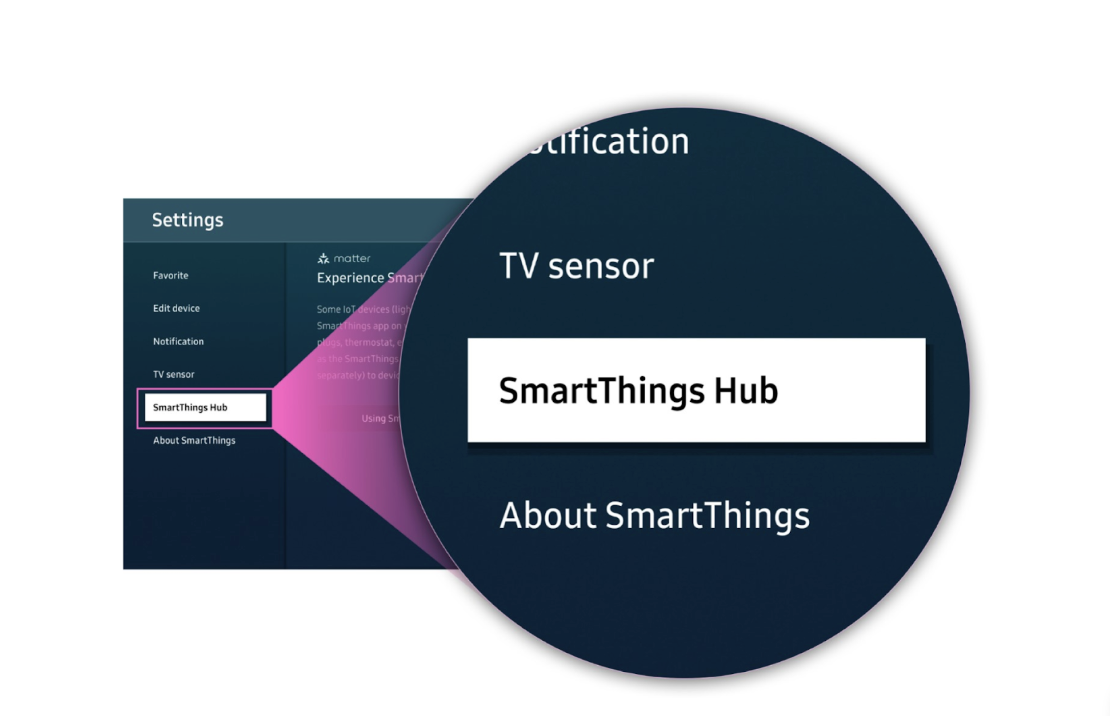
Many 2024-and-newer Samsung TVs have a SmartThings Hub built in, so no separate hub device is needed. It can be turned on either from the SmartThings app on a phone or from the SmartThings app on the TV itself; both methods connect the TV, activate the hub, and let a user start adding devices.
This is the practical, hands-on counterpart to Samsung’s broader “Hub Everywhere” strategy: rather than describing the concept of hubs built into everyday devices, this is the specific set of steps for turning that concept on for one TV. A phone already set up to control that same TV as a remote uses the same SmartThings app for hub activation, so nothing extra needs to be installed.
SmartThings TV Hub Activation at a Glance
| Method | Where it happens | Best for |
| Activate from a phone | SmartThings app on a Galaxy phone | Anyone already using SmartThings on their phone |
| Activate from the TV | SmartThings app on the TV itself, using the remote | Setting up the TV before linking a phone |
Which Samsung TVs Have a Built-In SmartThings Hub?
Many Samsung TV models from 2024 and newer include a SmartThings Hub built in, meaning the TV itself can act as the hub without an additional standalone device. Samsung’s material for this feature doesn’t list every specific model that qualifies, so it’s worth checking a TV’s own specs if its model year is close to that 2024 cutoff.
How Do You Activate the SmartThings Hub From Your Phone?
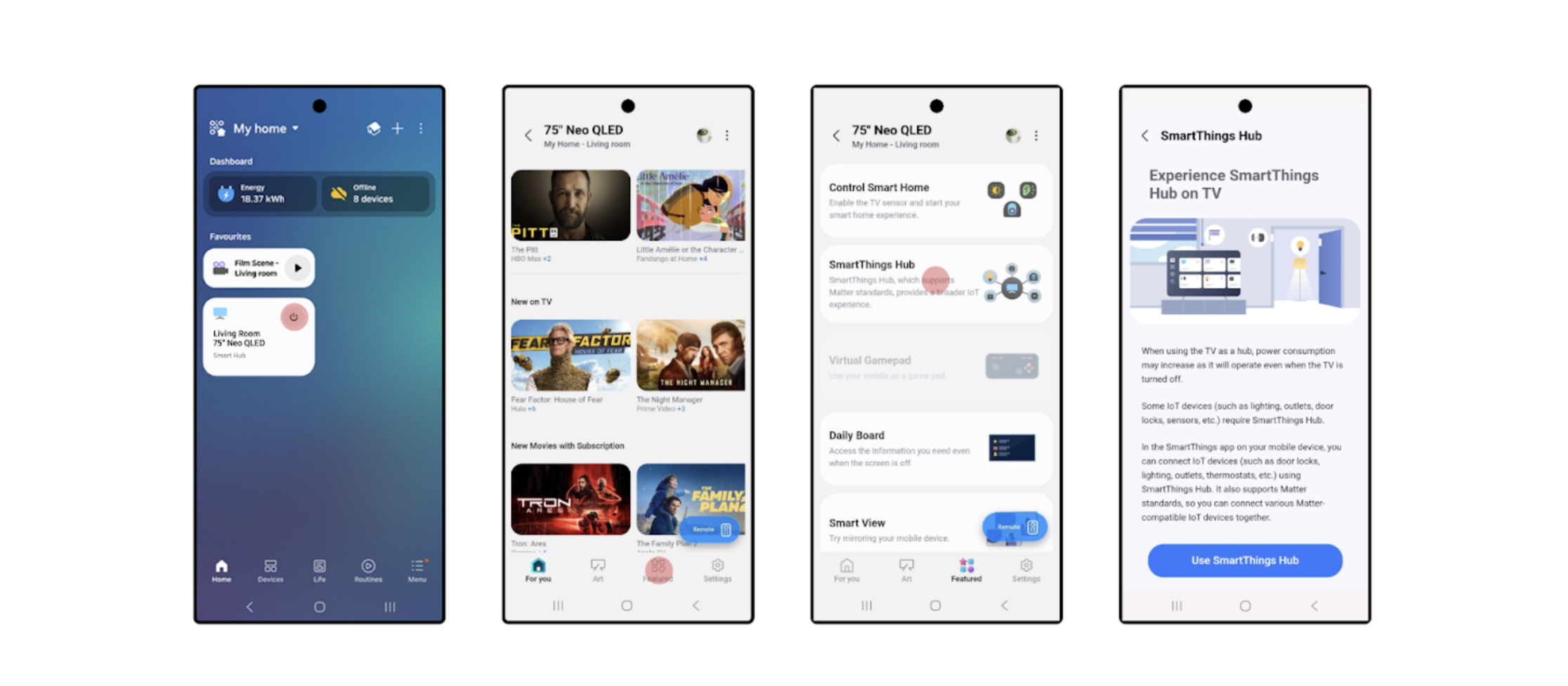
- Make sure the Samsung TV is powered on and connected to Wi-Fi.
- Open the SmartThings app on the phone and confirm it’s signed in with the same Samsung account used on the TV.
- Tap Devices in the app, then select the TV from the list.
- Tap the Featured icon at the bottom; SmartThings Hub shows up on the next screen.
- Follow the on-screen prompts to turn the hub on, and wait while SmartThings connects to the TV and completes setup.
Once finished, the TV is activated as a SmartThings Hub.
How Do You Activate the SmartThings Hub Directly From the TV?
- Make sure the Samsung TV is powered on and connected to Wi-Fi.
- Press the Home button on the remote, scroll to Connected Devices, and open the SmartThings app.
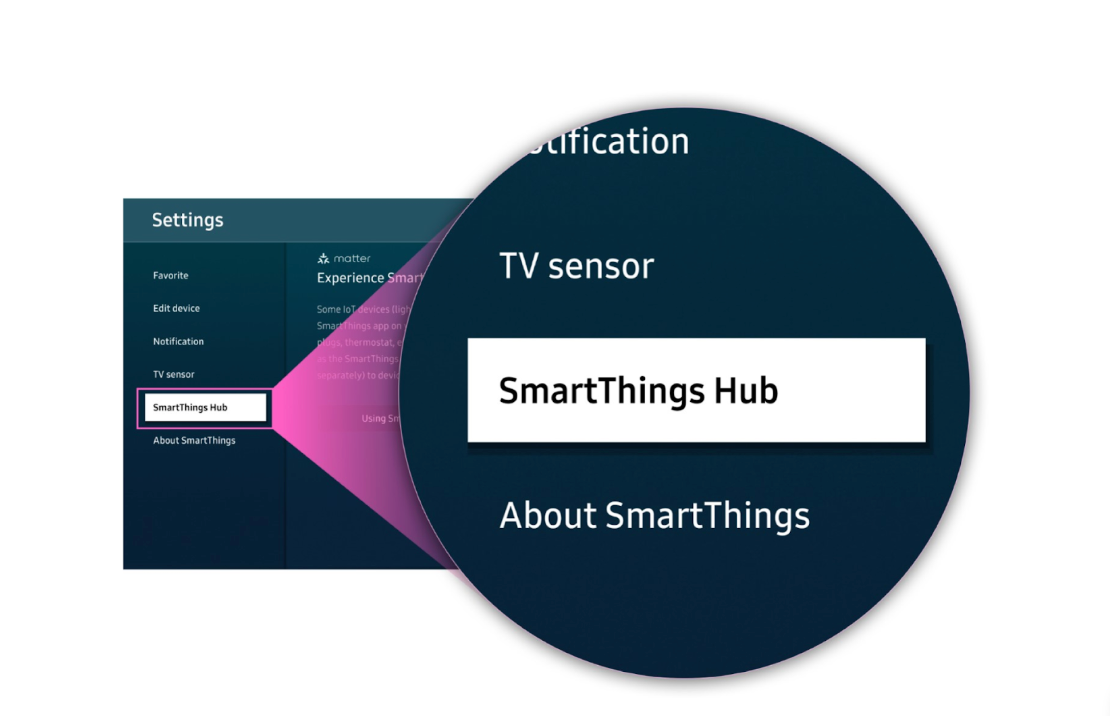
- Select the Settings icon in the SmartThings app; it may already appear on the home page.
- Scroll down and choose SmartThings Hub.
- Toggle SmartThings Hub to on.
How Do You Add Devices Once the Hub Is Activated?
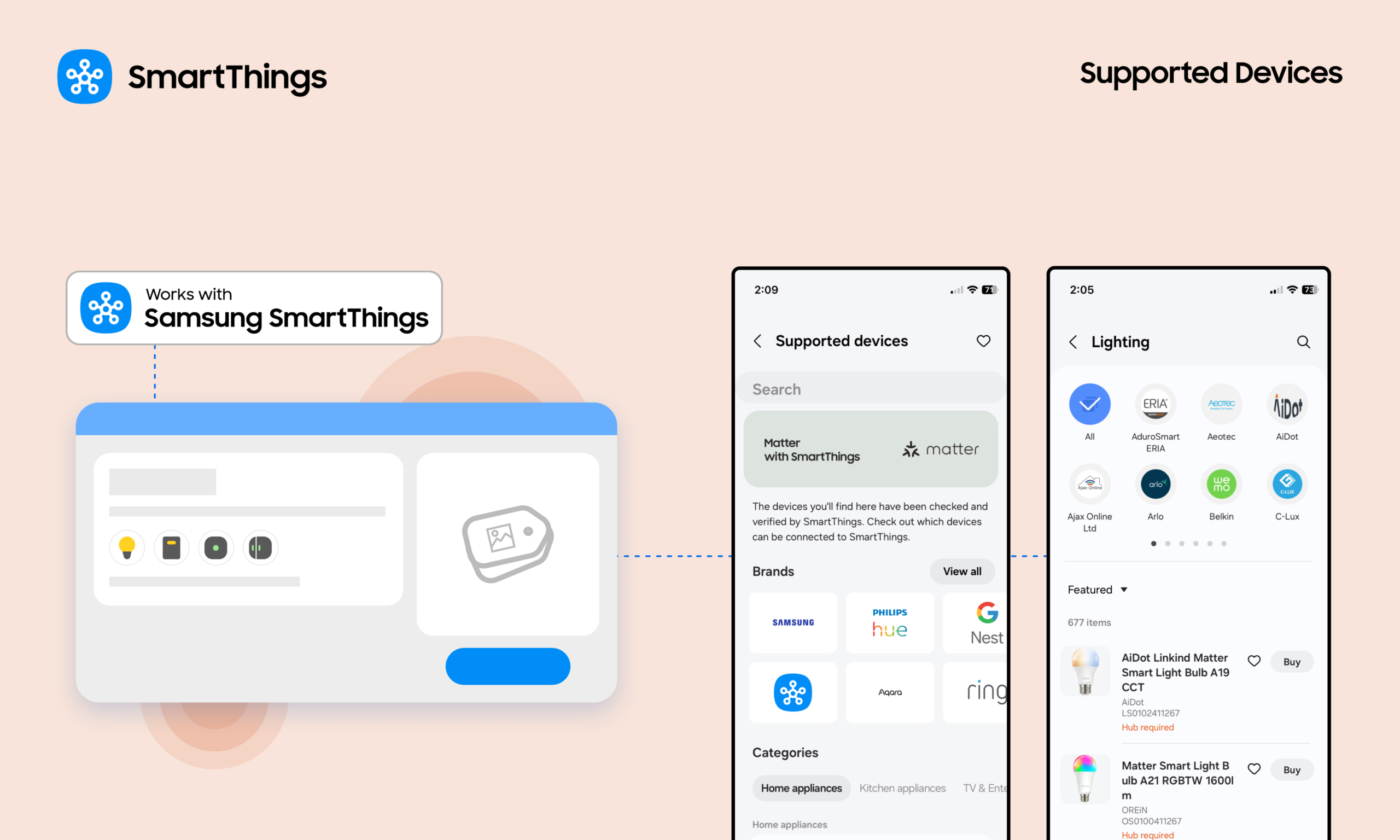
In the SmartThings app, tap + Add device, then scan for supported devices and import them into SmartThings. From there, the TV functions as the command center for the connected home: dimming lights, automating a thermostat when the house is empty, or linking new Matter devices as they’re added.
Why Activate the Built-In Hub Instead of Buying a Standalone One?
A TV, once it’s on and connected to Wi-Fi anyway, is already doing most of the work a standalone hub would otherwise need to be plugged in and configured to do. Activating the built-in hub is closer to flipping a setting on than setting up new hardware: there’s no box to unpack, no separate spot to find near a router, and no additional device pulling power around the clock. That matters most for anyone just starting a connected home, where the first hurdle is often deciding whether a hub is worth buying before knowing if the rest of the setup is worth the effort. Activating a hub that’s already sitting inside a TV removes that decision entirely — the only real choice left is whether to do it from the phone or from the remote, and either path leads to the same result.
SmartThings TV Hub: Compatibility and Limitations
Model requirement. The built-in hub is available on many 2024-and-newer Samsung TV models;
Same-account requirement. Activating the hub from a phone requires the phone to be signed in with the same Samsung account used on the TV.
Network requirement. The TV needs to be powered on and connected to Wi-Fi for either activation method; neither method is described as working while the TV is offline.
Device compatibility for adding devices. Once activated, the hub adds devices by scanning for Matter or other supported devices.